Order Fulfillment - Re-enrolling A Device
Summary
How to re-enroll an Order Fulfillment device into Baker's management software to allow for device and application updates.
Body
** If your branch location has functioning Order Fulfillment devices, do not start this process on all of them simultaneously until you have used at least one as a test device to verify the process below works using your internet connection.
When pairing the Bluetooth scanners, it is suggested to do them one at a time to avoid pairing devices to the wrong scanners. **
-
Click On the Settings icon from the device's home screen.
-
Click On General.
-
Scroll down to Transfer or Reset iPhone, Click On it.
-
Select Erase All Content and Settings. You will be prompted to confirm this twice, as it will reset the device back to factory settings. Proceed with both selections.
-
Once the iPhone is erased, you will see the screen that says Hello in many different languages.
-
Click Get Started, then United States and English.
-
Click Set Up Manually or Set Up Without Another Device.
-
Choose the BakerGuest wifi and enter the password.
-
A webpage will open after joining the WiFi. Click Done in the top right to dismiss it and continue with the setup.
-
Choose next when the Remote Management prompt pops up. It will pause for a short time on this step as it installs the management profile. This step should last no longer than 2 minutes.
-
Click Continue when prompted to keep your device up to date.
-
Click Enable Location. It will now download any remaining apps and may take a few minutes to finish downloading everything.
-
Once all apps have been loaded, open Settings, select Wi-fi, then select the Baker Secure network. It should connect automatically now.
-
Open the Order Fulfillment app. You may receive a pop-up to Share Location, allow it using either option.
-
Inside the Order Fulfillment app, select Baker. If you select anything else, such as East Coast Metals or Gemaire, you will need to start again at step 1.
-
In the app login screen, validate that it has something besides 0 for the server in the bottom-right corner.
-
If experiencing a power fault issue for either device listed above please allow 24 hour charge period with equipment shipped with device.
To Top
Reconnecting BT iPhone Scanners
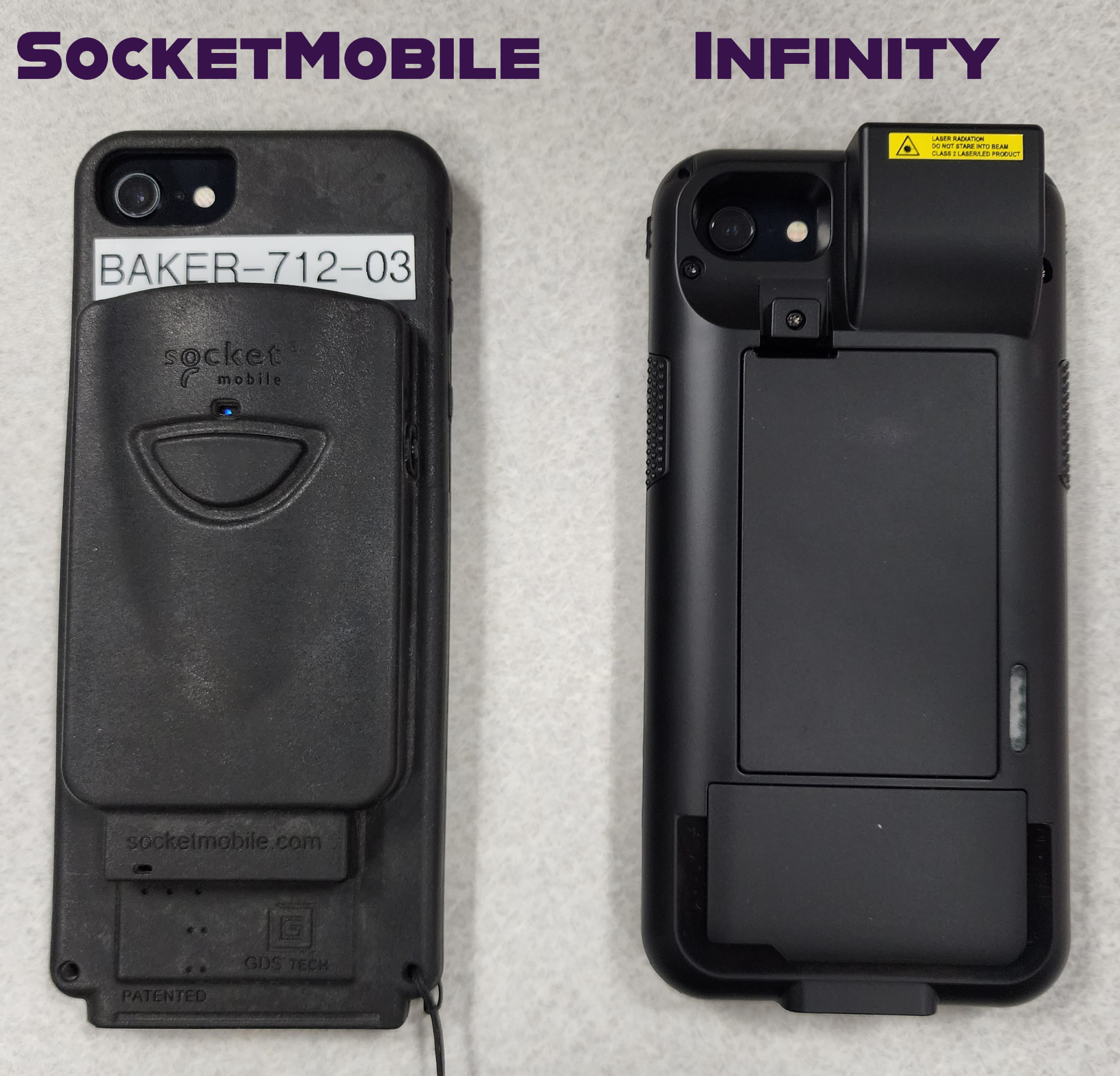
(Only applicable to SocketMobile scanners. Be sure to verify scanner type with the image above.)
-
Verify that the SocketMobile application as well as the Order Fulfillment application have been downloaded and installed automatically following the steps from the enrollment.
-
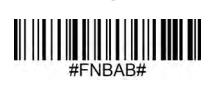
Scan the below barcode using the scanner. You don't need to be in any specific application, and should be able to scan this directly from the screen. If that doesn't work, you can print this page.
-
Turn the scanner back on.
-
Open the SocketMobile application and select Get Started.
-
Select Allow, then press OK in the pop up to allow Socket Mobile to use Bluetooth.
-
Press the large + icon in the middle of the screen, then select Barcode Reader, then tap Next to skip the barcode scan it is prompting for.
-
Select the scanner in this list, it will likely have a name similar to Socket or PreInit. It should pair now.
-
Test the scanner and make sure it scans into the field at the bottom. Do not use the barcode in this article for testing, it will unpair your scanner.
-
Exit the Socket Mobile App and open the Order Fulfillment app before signing in.
-
Tap the three dots (More) in the bottom right. Select Settings from the next menu.
-
Scroll to the bottom of the settings screen and make sure the Socket Mobile is toggled ON (green).
-
Scan a barcode to test and make sure it shows by Scanned Barcode: directly under the toggle. Do not use the barcode in this article for testing, it will unpair your scanner.
To Top
Details
Details
Article ID:
1527
Created
Tue 11/12/24 10:31 AM
Modified
Thu 10/16/25 2:50 PM