Table of Contents
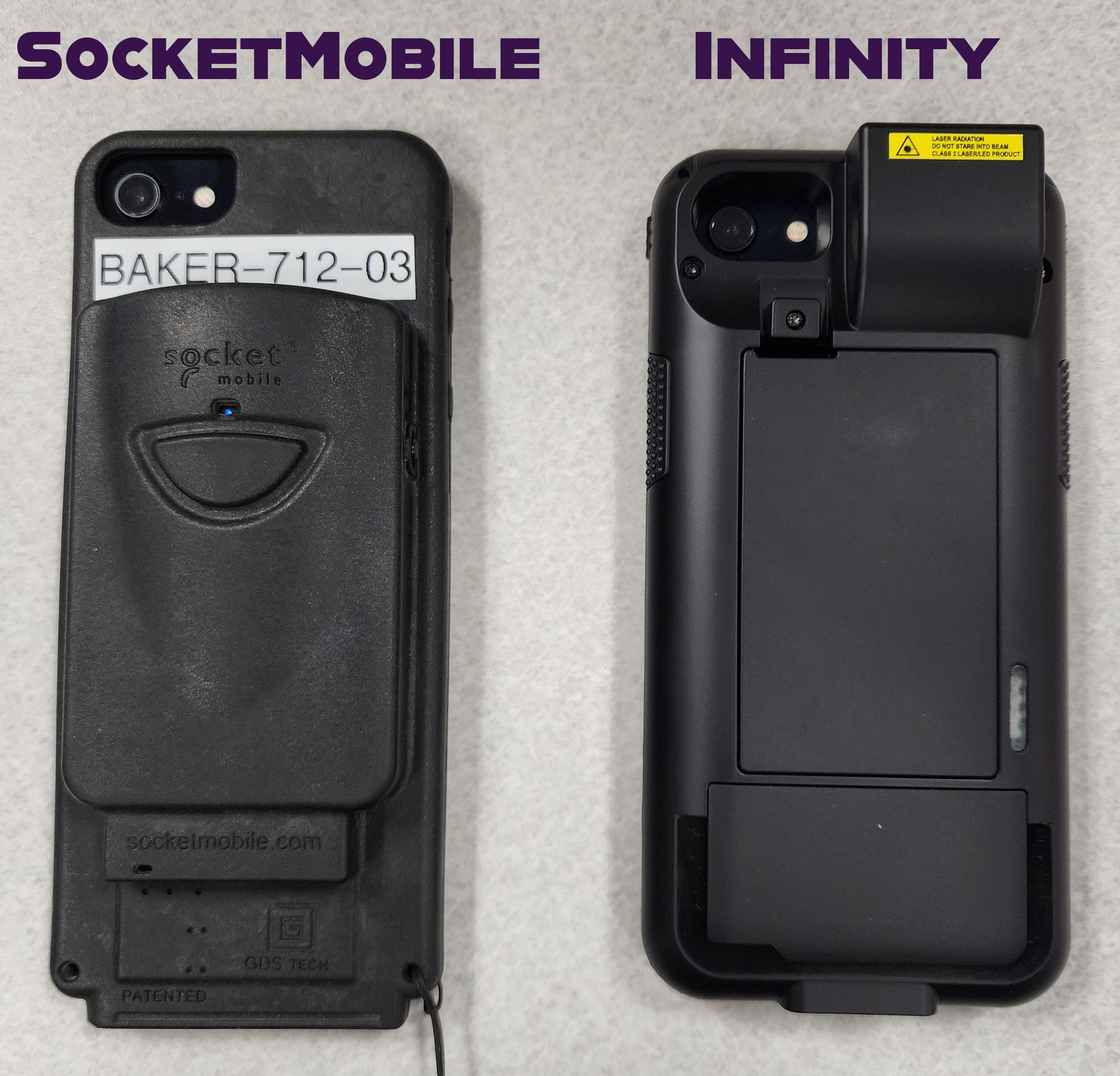
Please see the image below for what each scanner looks like.
To Top
For SocketMobile Scanners
- Verify the scanner is turned on using the small circle button on the side of the scanner. Note it is NOT the large button on the back that activates the laser.
- On the iPhone, navigate to the home screen if not already there and open the Settings app, then tap on Bluetooth.
- Verify the iPhone is currently paired to a scanner over Bluetooth. The scanner's name should begin with "Socket."
- If the device is not present in the Bluetooth list and the scanner is turned on, it may need to be reset. Please see the instructions here to reset SocketMobile scanners to factory defaults.
- Navigate to the home screen, then open the Order Fulfillment application. Sign in using an employee ID, but do not tap on Order Fulfillment.
- Tap the '...' icon in the bottom right to open the More menu, then tap Settings.
- Scroll all the way to the bottom and ensure that "SocketMobile" is selected - if it is, it should automatically deselect "Infinity" once it selected.
- Tap Done in the top right and then tap Order Fulfillment. Attempt to scan a barcode and see if it is searched for automatically by the OF app.

To Top
For Infinity Scanners
- Check OF app scanner selection:
- In the Order Fulfillment app, verify the scanner is turned on by pressing the scan button till the light comes on.
- Tap the '...' icon in the bottom right to open the More menu, then tap Settings.
- Scroll all the way to the bottom and ensure that "Infinity" is selected - if it is, it should automatically deselect "SocketMobile" once it selected.
- Tap Done in the top right and then tap Order Fulfillment. Attempt to scan a barcode and see if it is searched for automatically by the OF app.
- Physical Issues with scan buttons
- Check to see if the scan buttons on the sled are stuck. If the buttons aren’t able to be pressed/depressed, and no amount of jostling the buttons frees them – the sled needs to come back to be inspected and potentially RMA’d.
- If the buttons become unstuck – multiple test scans should be conducted to ensure the scan buttons do not become stuck again. This issue should also be noted in the Asset (find the asset in TDX -> click into the asset -> use the Comment field to document the issue) in case the buttons become stuck later down the line.
- Scan Engine Issue
- The scan engine on the Infinite/Linea Pro sleds can be reset. Start by closing all apps.
- Have the user scan items multiple times to see if the scanner stays stuck on or works as expected
- If the scan engine reset was successful, go into the OF app -> Settings -> Ensure Infinity is selected for Barcode Reader.
- Open IPCSupport App -> ensure the default settings of the sled is correct using the Infinite Sled Settings document, adjust any that are not -> Go to Configuration -> select Reset Barcode Engine – this option will briefly flip to the On position, beep, and then go back to the Off position. You will get a message indicating success or failure. In the case of failure, you may need to power cycle the device – if repeated failures, the device should be shipped back for additional triage.
- Device Reset – ensure the sled is not plugged into a power source.
- Reset the Sled/Phone connection using the pin hole method or the button press method.
- Button Press Method – Press and hold both scanner buttons, along with the Power LED (this is a button) until the device beeps.
- Pin Hole method – on the bottom of the sled, where the charge cable connects is a pin hole (pictured below). Using something small enough to press and hold this pin hole, do so for 30 seconds.
- *NOTE* there is no indication from the device that the reset was successful, simply press and hold for 30 seconds.
- After the reset – go into IPCSupport and do a firmware update, followed by a reset of the scan engine, as i
- Go into the OF App -> Settings -> Ensure the correct barcode reader is selected
- Have the user scan items multiple times to see if the scanner stays stuck on or works as expected
- Re-Enroll the device - ensure the sled is not plugged into a power source.
-
Once the phone has pulled down all apps
-
Ensure that the default settings in the IPCSupport app are correct, by using the previously mentioned Infinite Sled Settings document. Make sure the correct barcode engine is selected in the OF App.
-
Have the user scan items multiple times to see if the scanner stays stuck on or works as expected
-
If the scanner continues to stay stuck on, the device must be shipped back for replacement. If the replacement is urgent, follow the OF setup process here to get a device shipped in a timely fashion. Include a return label with the device, so that the defective OF can be sent back.
To Top